Problem:
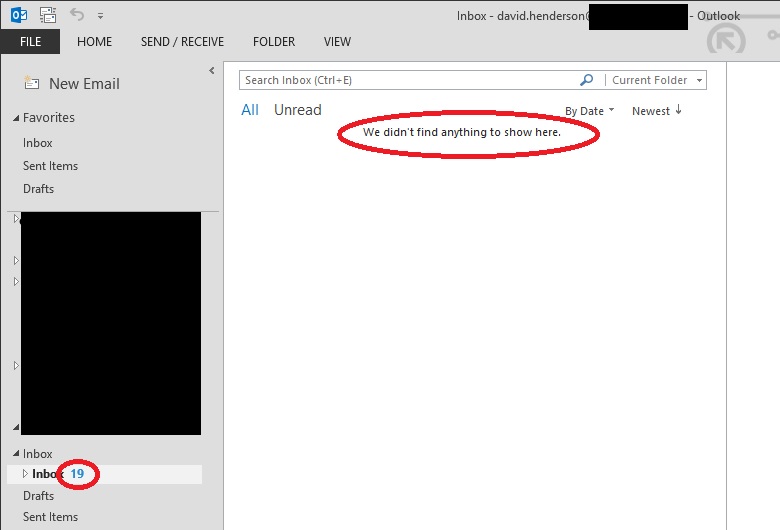
Outlook shows the message “we didn’t find anything to show here.” when looking in a folder that shows unread items.

Cause
The views in outlook can become unresponsive causing it to not display the emails.
Solution
Reset the view in outlook
- Open outlook and select the folder you are having issues with.
- On outlook ribbon click “View”
- Under current view category, click the Reset View

Screenshot from Outlook 2013
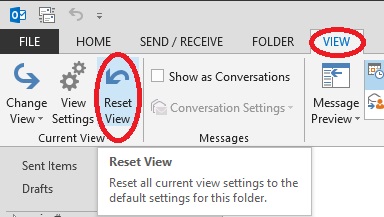
Screenshot from Outlook 2013
Unfortunately that didn't work for me... *sigh*
ReplyDeleteDoesn't work for me. The Reset View button is grayed out.
ReplyDelete