How to display the location of the current file on the Quick Access Toolbar in Office 2013
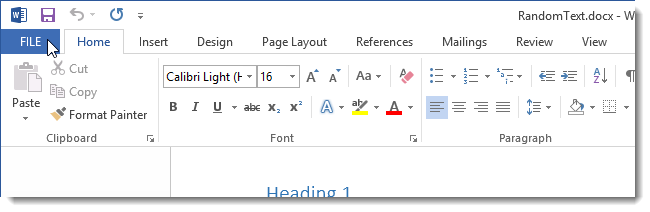
1. Open any document or a blank document in Word and click the FILE tab.
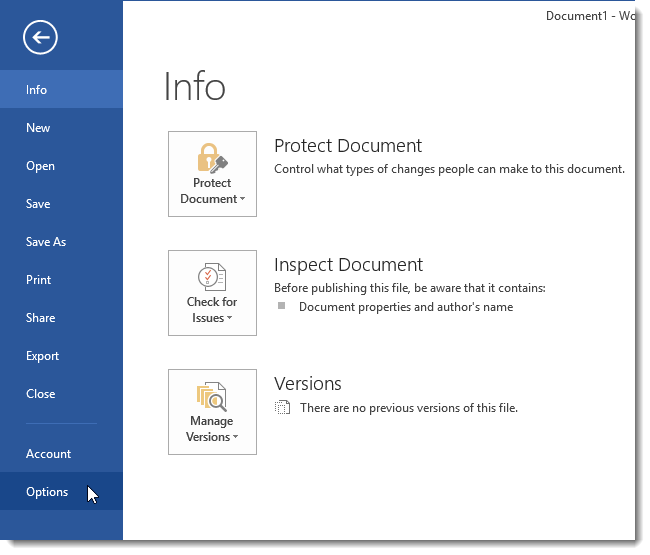
 2. Click Options at the bottom of the options list on the left.
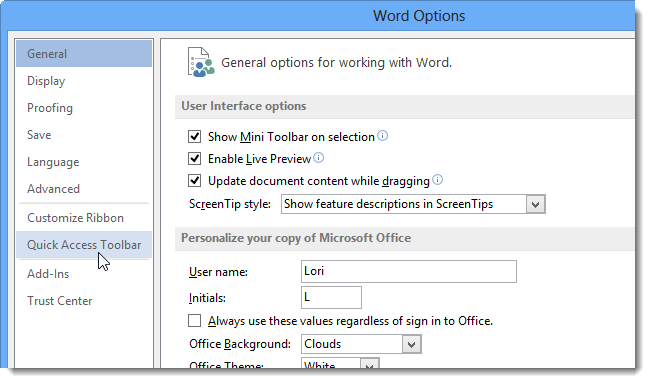
 3. On the Word Options dialog box, click Quick Access Toolbar in the options list on the left.
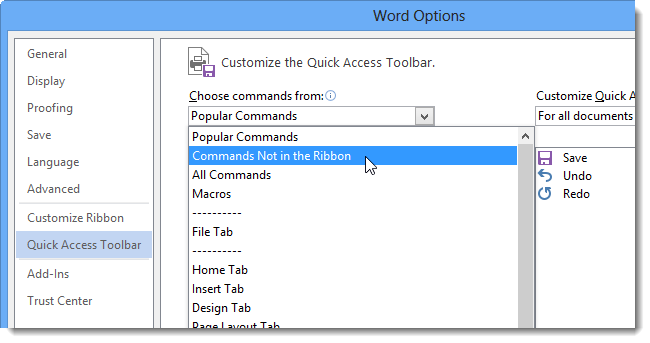
 4. To narrow the choices in the list of commands and make it quicker to find the desired option, select Commands Not in the Ribbon from the Choose commands from drop-down list.
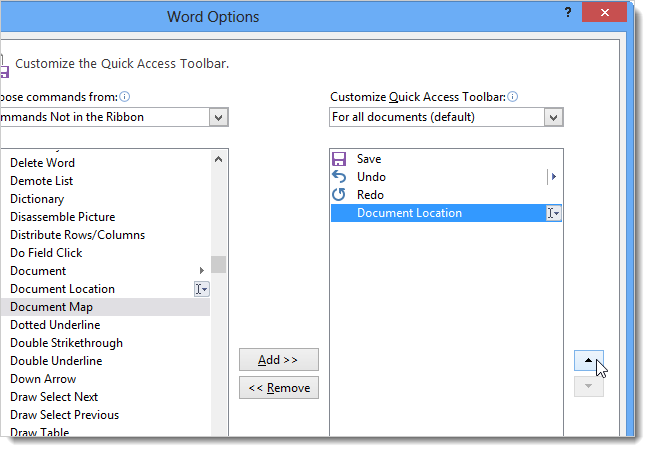
 5. Scroll down in the list of commands until you find the Document Location command. Select it and click Add to add it to the Quick Access Toolbar.

6. Click OK to accept the change and close the Word Options dialog box.
 7. The Document Location box and drop-down list displays on the Quick Access Toolbar and shows the path to the currently open document.

Solution
You can display the location of the currently open Office document on the Quick Access Toolbar. To do this follow these steps:1. Open any document or a blank document in Word and click the FILE tab.
 2. Click Options at the bottom of the options list on the left.
 3. On the Word Options dialog box, click Quick Access Toolbar in the options list on the left.
 4. To narrow the choices in the list of commands and make it quicker to find the desired option, select Commands Not in the Ribbon from the Choose commands from drop-down list.
 5. Scroll down in the list of commands until you find the Document Location command. Select it and click Add to add it to the Quick Access Toolbar.
You can move the Document Location command to a different location on the Quick Access Toolbar using the up and down arrows to the right of the list of toolbar commands.
 7. The Document Location box and drop-down list displays on the Quick Access Toolbar and shows the path to the currently open document.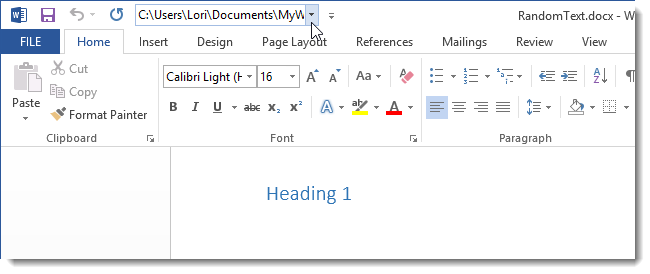
Comments
Post a Comment